The Standard Is Holding You Back

The standard keyboard design has its roots in manual typewriters, where the moving hammers could jam if certain keys were pressed too rapidly in quick succession.

Having used numerous ergonomic keyboards over the years, I find that a two-piece, ortholinear keyboard offers the best solution for enhancing health and efficiency while providing a pleasant typing experience, whether for work or play. Getting used to an ortholinear key layout only took me a few minutes, and was immediately a welcome change from the less efficient standard, staggered layout.

These keyboards allow for key customization, offering many options that include soft and quiet or light and clicky. For my public office keyboard, I prefer quiet keys, while at home, I enjoy the satisfying sound and feel of loud, clicky keys.

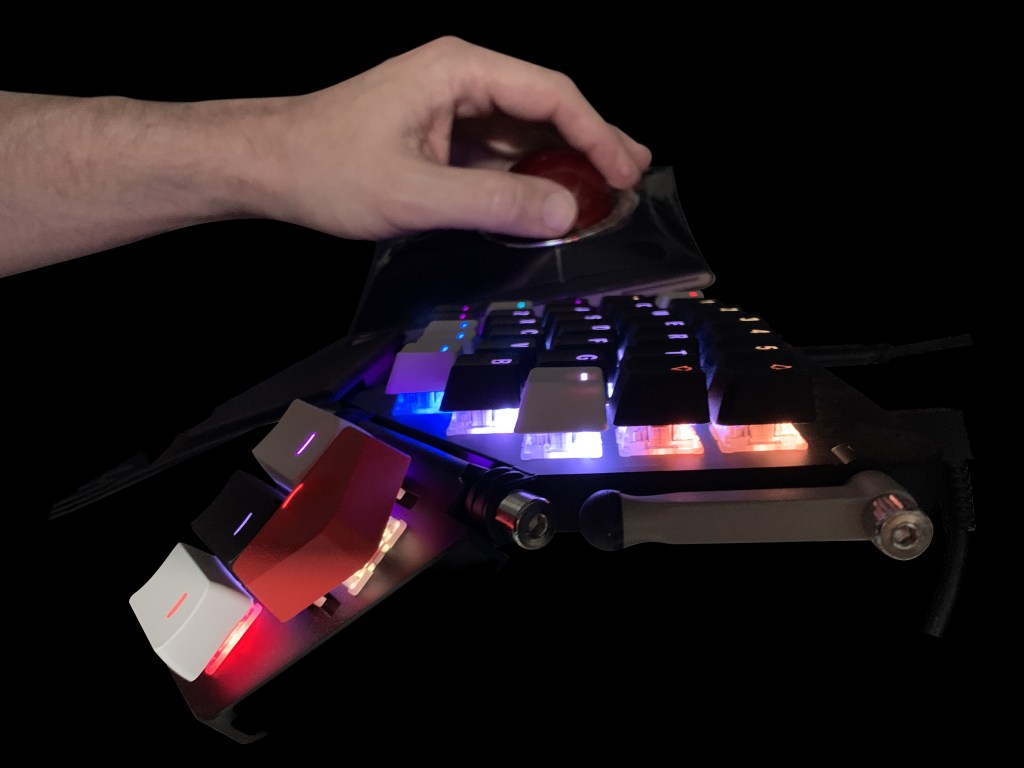
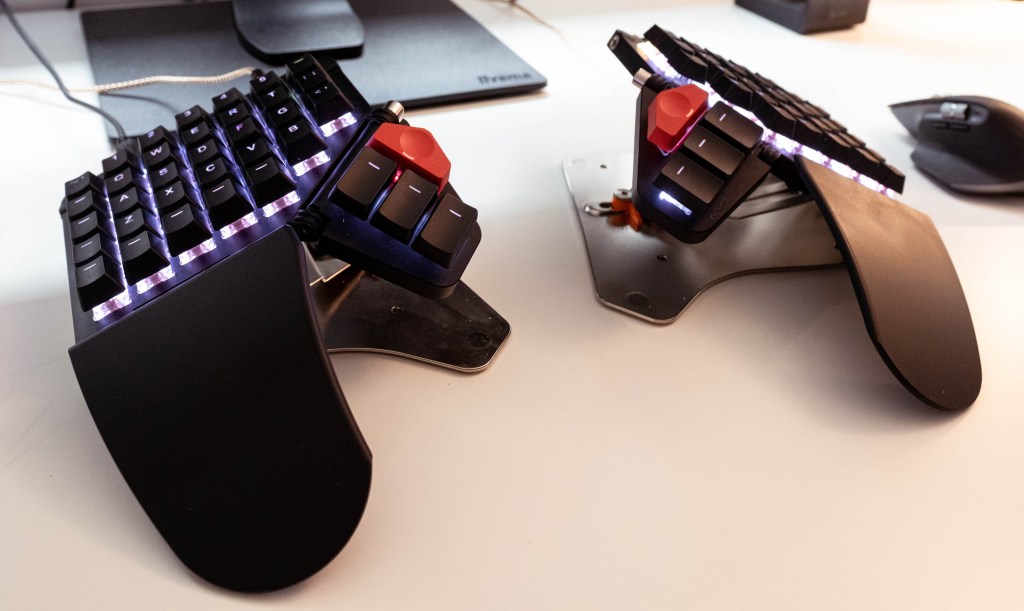
The split design of these keyboards is a significant improvement over traditional, flat boards, as it helps prevent back and wrist pain by promoting a more natural hand position. The tenting feature elevates the keyboard halves, allowing for better hand alignment, and encourages the thumbs to engage more actively, moving beyond hitting just the space bar. With a standard layout, the most powerful finger is doing the least work, which makes no sense.

Many users accept the standard keyboard without questioning its design, remaining vulnerable to the discomfort and inefficiency it can cause.


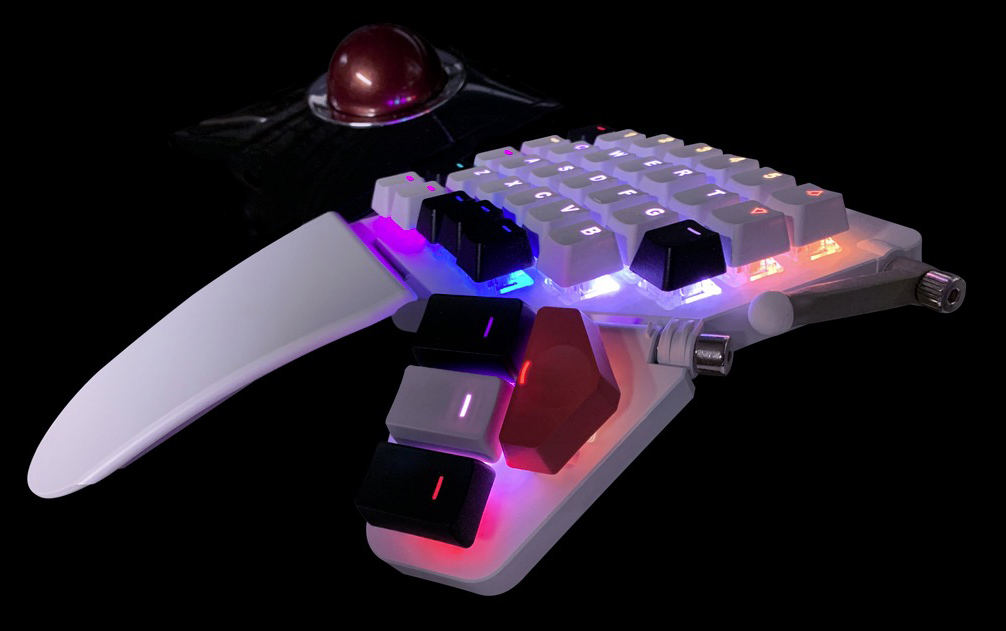
I have yet to explore alternative letter layouts, still using QWERTY, which was designed with typewriter mechanics in mind rather than optimizing finger strength. I am open to trying COLEMAK or DVORAK layouts, as this ZSA Moonlander keyboard allows for easy reconfiguration of key caps. While retraining muscle memory may take time, it is a feasible challenge with long-term benefits.

The Moonlander supports up to thirty-two custom layouts, and I currently utilize eight total, for applications like Photoshop, Illustrator, and InDesign. Switching between layouts is fast and efficient.

Additionally, each key can be assigned a custom LED color, aiding in layer differentiation and key identification.

Exploring alternatives to the generic keyboard design is not commonly considered, and most people remain unaware of the limitations of their current input devices.

Pictured here is the left half of my ZSA Moonlander, along with my Kensington Slimblade trackball, representing but a portion of my input device ecosystem.

https://lnkd.in/gJ_vgah6
2025: My Computing Setup

Understanding that everybody has different computing needs, I’m still going strong with a 2018 Intel Mac mini with 16 GB RAM. I use Indesign, Illustrator and Photoshop as well as occasionally Dreamweaver. iMovie every week for editing videos from my GoPro 7 camera.

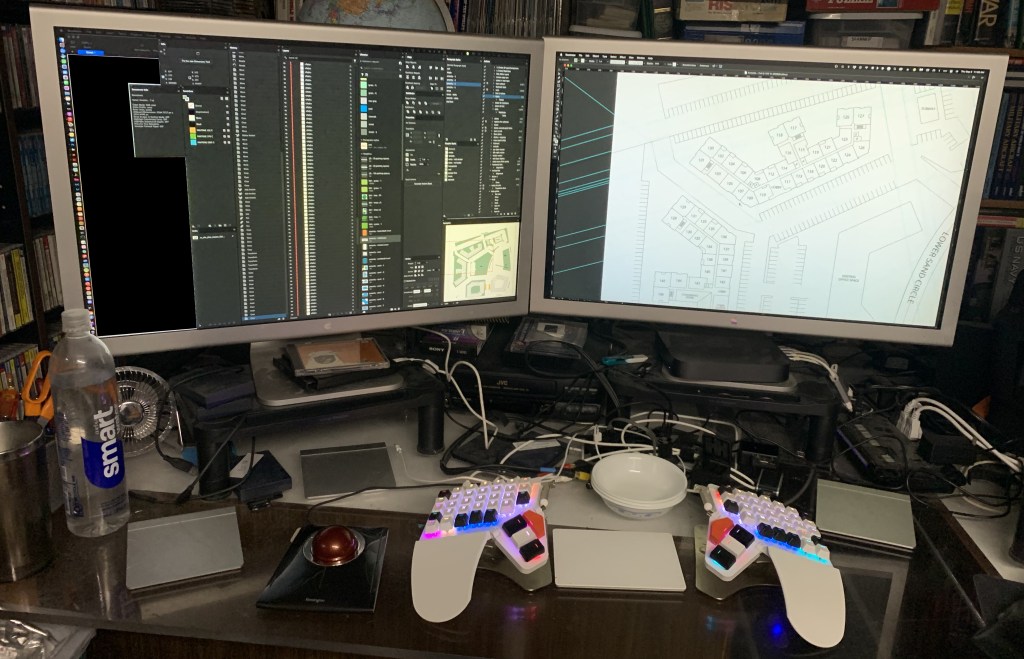
I’m also using two 30″ Apple Cinema Displays that are almost twenty years old, and require multiple adapters to work, but they are great monitors that originally cost $3000 and I bought them years ago for $300 apiece. I also have two 17″ Apple Cinema Displays from the same era on monitor support arms that I switch my main computer to when I’m working from home. So I’m basically surrounded by monitors on two of four sides!

I can’t afford a RAID setup, so I have six external hard drives, from 8TB to 10TB, and Time Machine running x2.

Add to that the ergonomic, tented, ortholinear, programmable split-keyboard “Moonlander” by ZSA, three Apple Magic Pads, one standard Apple Mouse, and that is my setup. And a Kensington SlimBlade Trackball.

When I find a job, I plan to migrate to one of these new little Mac Mini that have been doing very well in reviews, and I plan to shell out for the 32 GB RAM and buy an external conformal hub that has space for an SSD. Any recommendations on that would be great. The four Thunderbolt ports I have on my current Mini are vital for how things are set up right now with all of my external hubs, so I am going to have to factor that into whatever I get.

My previous 2014 Mac Mini was awful in that it only had un-upgradable 8MB RAM, and that kept causing problems and I couldn’t upgrade. I can upgrade what I have now, but what few issues I have aren’t urgent enough to warrant me opening it up. I used to always open up my Macs, I had a Power Computing 150 that had been totally Frankensteined with every upgrade possible, but these days I prefer everything just works, and it does. I’m kind of past the “satisfaction of doing things myself” when it comes to upgrading. I just want to get things done.

Any recommendations on drawing tablets would be welcome, I have no idea what would be good at an affordable price.

Additionally, in the “boneyard” so-to-speak, I have a G3 tower, a G4 tower, and a 2009 aluminum “cheese-grater” tower. Just can’t find it within myself to get rid of them, even though I did let the PowerComputing 150 go after nine years of daily use. That one was a beast. The 2009 Mac Pro Tower is more a piece of art, by value of that alone I’ll never get rid of it! The G3 Tower doesn’t start up anymore, and from videos I’ve viewed on that topic, it might be a bit of work getting it going again, especially if it is the power supply.

And I still have my original Quadra 605 from 1994. Never going to get rid of that box!